
2. Editing Content
Update text, images, and sections to match your brand and messaging.
Source: Framer Academy
Important Notes
• Avoid deleting existing sections unless necessary reuse and modify them instead
• Keep content consistent across all pages for a more professional result
• Changes to components may affect multiple sections across the site
2.1 Edit Text Content
Click on any text element directly on the canvas to start editing. You can update headings, paragraphs, and buttons using the right-side panel.
Replace placeholder text with your own while keeping the structure and spacing consistent.
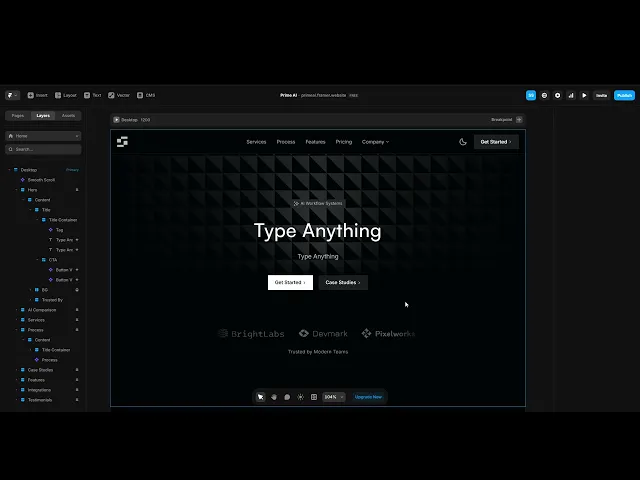
2.2 Update Hero Section Background
Locate the hero section background inside the section’s folder and replace it with your own image, gradient, or color. The structure is clearly organized, so you can easily identify the background layer and update it without affecting other elements.


Source: Framer University
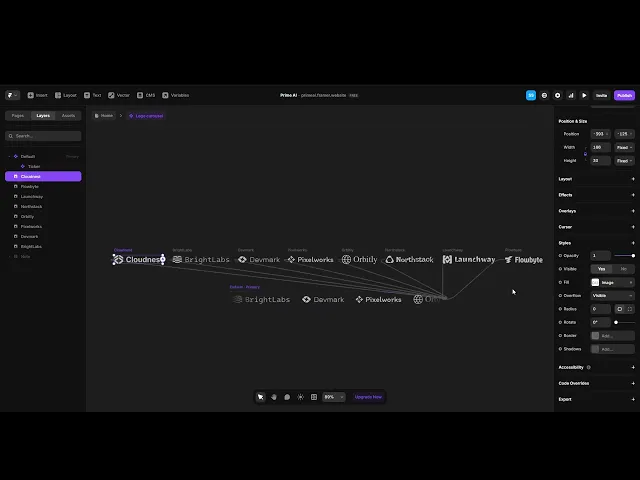
2.3 Replace Company Logos
Navigate to the logos section and replace existing logos with your own. Each logo is organized within a clearly named structure, making it easy to identify and update.
For best results, use consistent sizing and color to maintain a clean and professional look across the section.
Quick Tip
Double-click text layers to edit faster directly on the canvas instead of using the panel every time.